
A travel eSIM is a data plan you add to your iPhone as a second line. Your usual SIM stays where it is, so your number keeps working for calls and texts, while the eSIM carries your mobile data abroad.
This guide covers iPhones on iOS 17 and later. Older versions use the same steps with slightly different menu names. Using a Samsung or a Pixel? See how to install a travel eSIM on Android.
Before you start
- Check your iPhone takes an eSIM. Every iPhone from the XS and XR onwards does. US models from the iPhone 14 onwards are eSIM only. The Apple model list has every model, and does my phone support eSIM? shows the 30-second check.
- Check it is unlocked. A phone locked to your home carrier refuses another carrier's eSIM. If you bought it outright, it is almost always unlocked. Ask your carrier if you are not sure.
- Be on Wi-Fi. The eSIM downloads over the internet, so add it at home or at the hotel, not in the arrivals hall with no signal.
- Add it on the day you leave, before you go to the airport. On most plans the clock starts the first time the eSIM connects to a network in the country it covers, not when you add it. Each plan says which rule it follows, so check yours.
Not sure when to install? See when to install an eSIM before travel. Wondering what happens in flight? Does an eSIM work on a plane?
How to add an eSIM to your iPhone
You will have three ways to add it, all in the same email. Use whichever is easiest.
Option 1: the one-tap link
On the iPhone you are adding it to, tap the install link. iOS opens the eSIM setup screen directly. Tap Continue, then Done. This works on iOS 17.4 and later.
Option 2: scan the QR code
You need a second screen for this: the QR code on a laptop, or printed out.
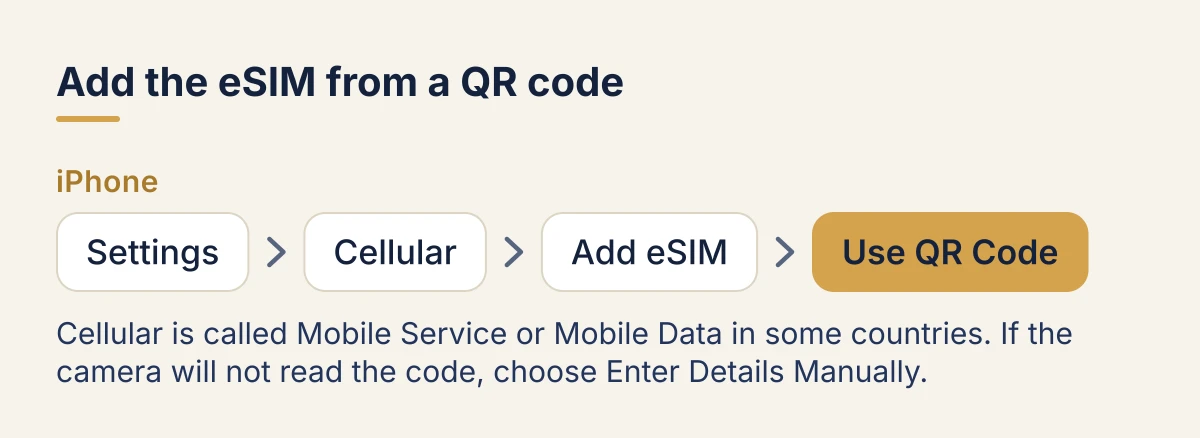
- Open Settings, then Cellular (called Mobile Service or Mobile Data in some countries).
- Tap Add eSIM, then Use QR Code.
- Point the camera at the QR code and follow the prompts.
Option 3: enter the details by hand
If the camera will not read the code, follow the same path, choose Enter Details Manually, and type the SM-DP+ address and the activation code from your email exactly as written.
Label the lines
iOS asks you to name the new line. Call it Travel and leave your usual one as Primary. Then set:
- Default line: Primary, so calls and texts keep using your number.
- iMessage and FaceTime: Primary.
- Cellular Data: Travel.
Turn Allow Cellular Data Switching off. If it stays on, your iPhone may fall back to your home SIM's data when the signal is weak, and your home carrier bills roaming.
How to activate the eSIM when you land
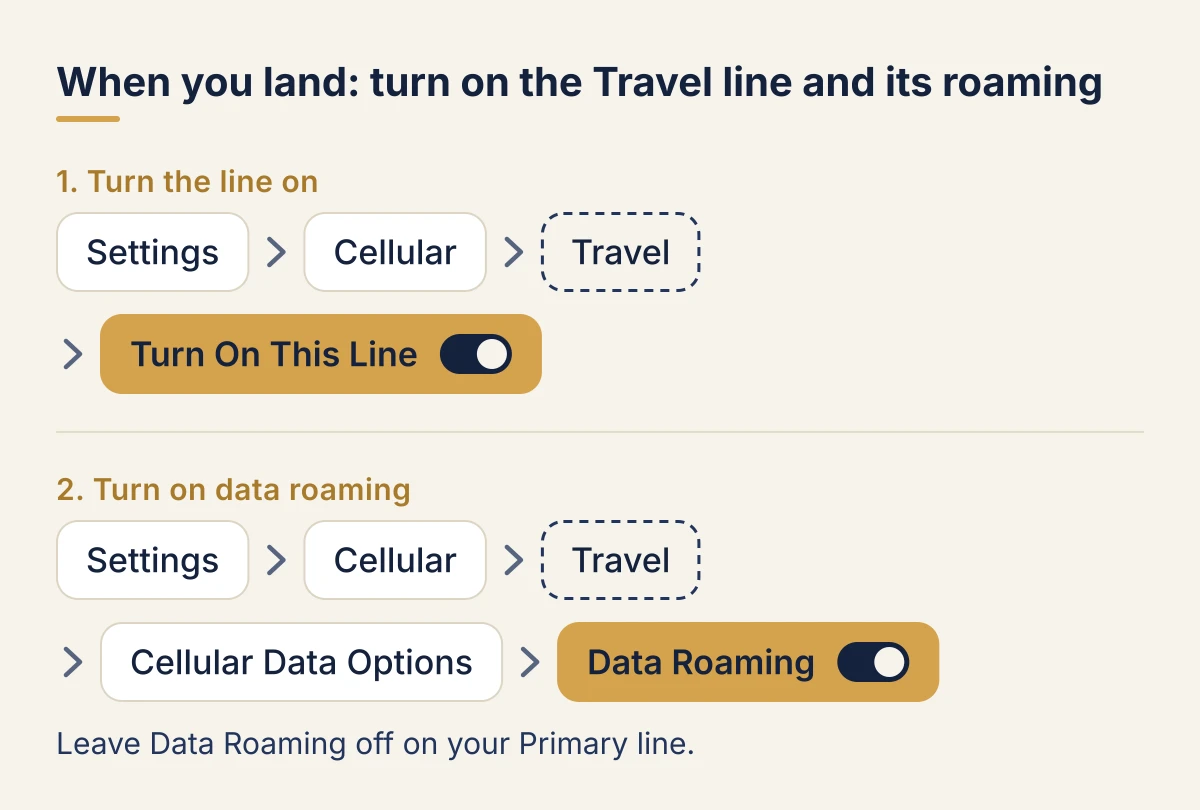
- Go to Settings > Cellular and tap the Travel line under SIMs.
- Make sure Turn On This Line is on.
- Tap Cellular Data Options and turn Data Roaming on for that line. A travel eSIM is always roaming on a local partner network, so data does not work without it.
- Leave Data Roaming off on your Primary line (same path: tap Primary, then Cellular Data Options) if you want to avoid roaming charges from home.
Not sure which switch does what? See what is data roaming, and should it be on or off?
Give it a minute or two to find a network. If nothing connects after five minutes, restart the phone. Still nothing? Go to Travel > Network Selection, turn Automatic off and pick a network from the list. If it still shows No Service, or bars but no internet, our guide to fixing an eSIM that is not working abroad goes through every cause in order.
Common questions
Can I keep WhatsApp on my usual number? Yes. WhatsApp is tied to the number you registered, not to the line carrying the data.
Can I delete the eSIM after the trip? Yes, once the plan has expired. Before that, turn the line off instead: most eSIMs cannot be added again once deleted. See how to delete an eSIM from an iPhone.
I am changing iPhones. Does the eSIM come with me? Your home line usually does, with Quick Transfer. A travel eSIM usually does not: see how to transfer an eSIM to a new iPhone before you erase the old one.
Can I use my phone as a hotspot? Usually yes. Some plans limit it, and the plan details say so. Here is how to share your eSIM's data with a hotspot.
The QR code says it has already been used. An eSIM installs once. If the first install failed halfway, contact the seller's support with your order number rather than trying again.