

You land, take your phone off airplane mode and the travel eSIM does nothing: no bars, "No Service", or bars but no internet. In most cases the eSIM itself is fine and one setting is wrong. The fixes below are in the order we see them cause trouble, so work down the list and stop when data comes back.
This applies to any travel eSIM, whether you bought it from us, Airalo or anyone else. The menu paths are for iPhone (iOS 17 and later), Samsung Galaxy (One UI) and Google Pixel. Names can differ slightly by software version, country and carrier.
One rule before you start: do not delete the eSIM. Apple's own advice is not to erase an eSIM as a troubleshooting step unless your provider tells you to, and a deleted travel eSIM usually cannot be installed again.
1. Data roaming is off on the eSIM line
This is the most common cause by far. A travel eSIM connects through local partner networks, so your phone treats it as roaming. With Data Roaming off on that line, you may see bars but get no data.
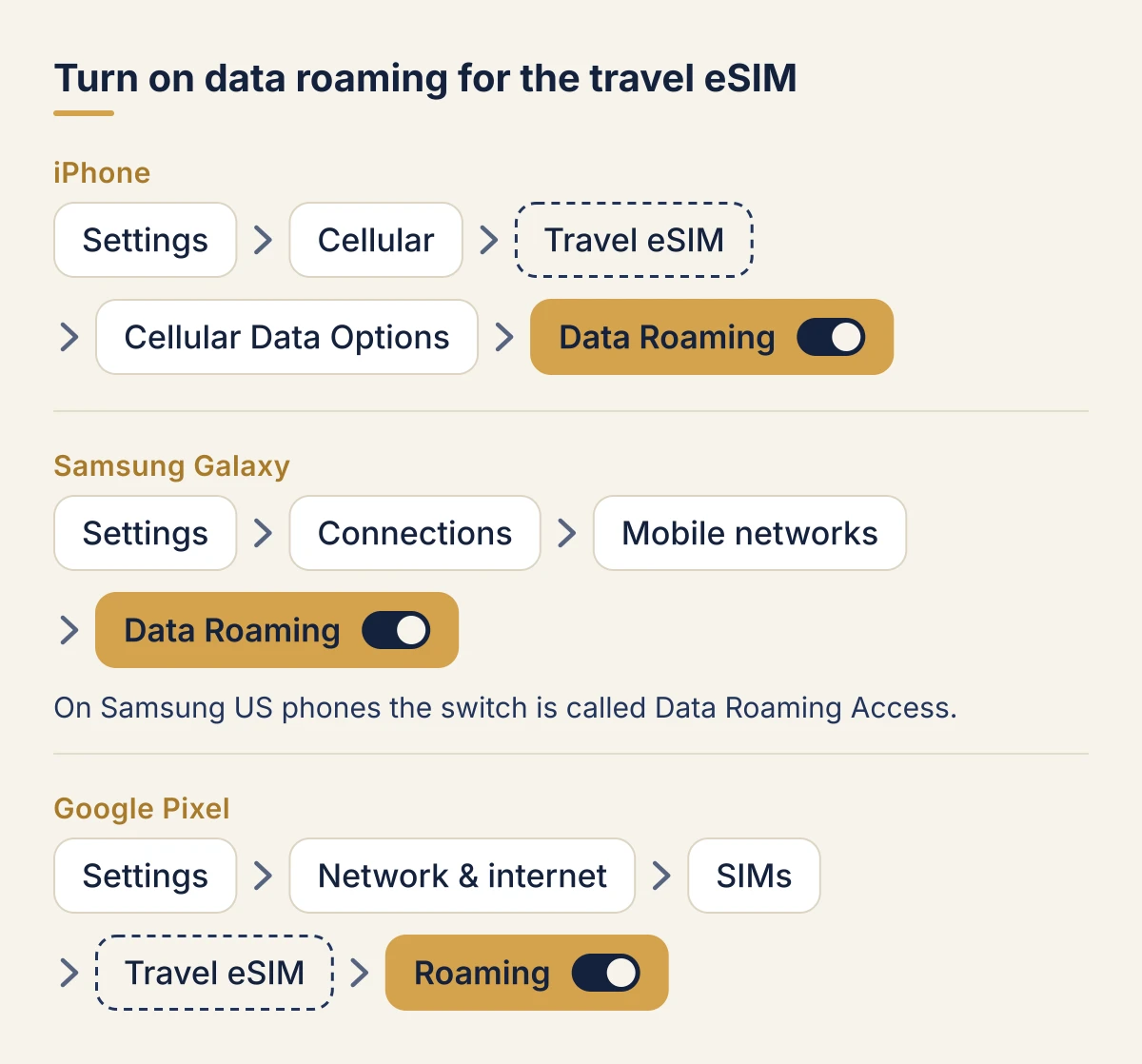
- iPhone: Settings > Cellular (Mobile Data or Mobile Service in some countries), tap the travel eSIM under SIMs, then Cellular Data Options, and turn on Data Roaming.
- Samsung Galaxy: Settings > Connections > Mobile networks, then turn on the data roaming switch (Data Roaming Access on Samsung US phones). On a dual SIM phone, make sure you are changing the travel eSIM's setting.
- Google Pixel: Settings > Network & internet > SIMs, tap the travel eSIM, then turn on Roaming.
Each line has its own switch. Turn it on for the travel eSIM only. If your home plan would charge you abroad, keep roaming off on your home line. Our guide What is data roaming? explains why.
2. The phone is using the wrong line for data
Only one line can carry mobile data at a time. If it is still your home line, either nothing happens (roaming is off there) or your home carrier bills you.
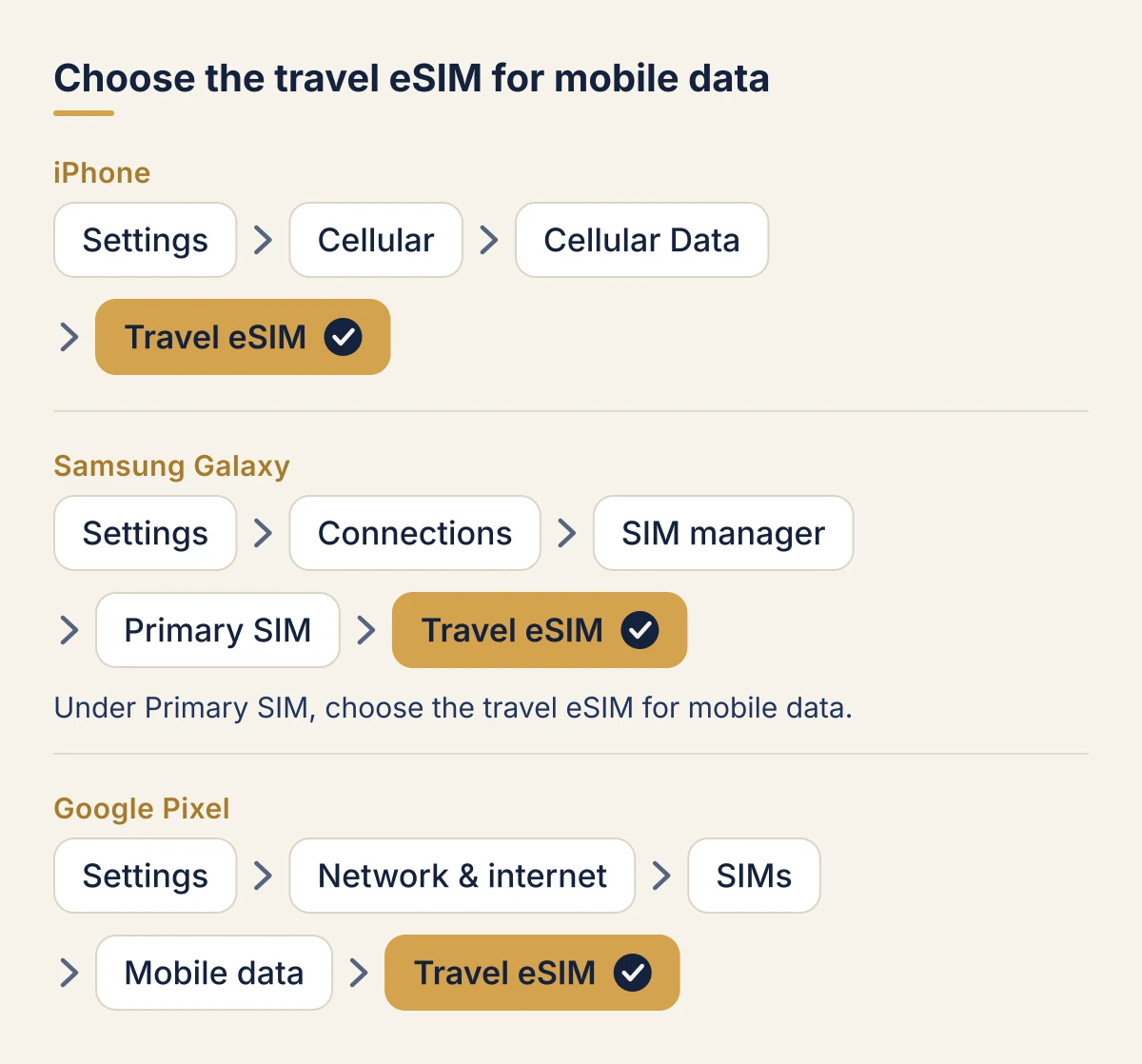
- iPhone: Settings > Cellular > Cellular Data, then pick the travel eSIM.
- Samsung Galaxy: Settings > Connections > SIM manager, then under Primary SIM choose the travel eSIM for mobile data.
- Google Pixel: Settings > Network & internet > SIMs, then under your primary SIMs tap Mobile data and choose the travel eSIM.
Data switching settings. On iPhone, Allow Cellular Data Switching sits on the same Cellular Data screen. Apple says that with it on, a call on your other line moves data to that line for the length of the call. With it off, data does not work during a call on the line that is not your data line. Many Galaxy phones also have an automatic data switching option in SIM manager, which can move data to your other SIM when the signal is weak. If you want data to stay on the travel eSIM, keep these off.
3. The eSIM line is turned off
A line can be installed but switched off, often after you turned it off to save it for the trip.
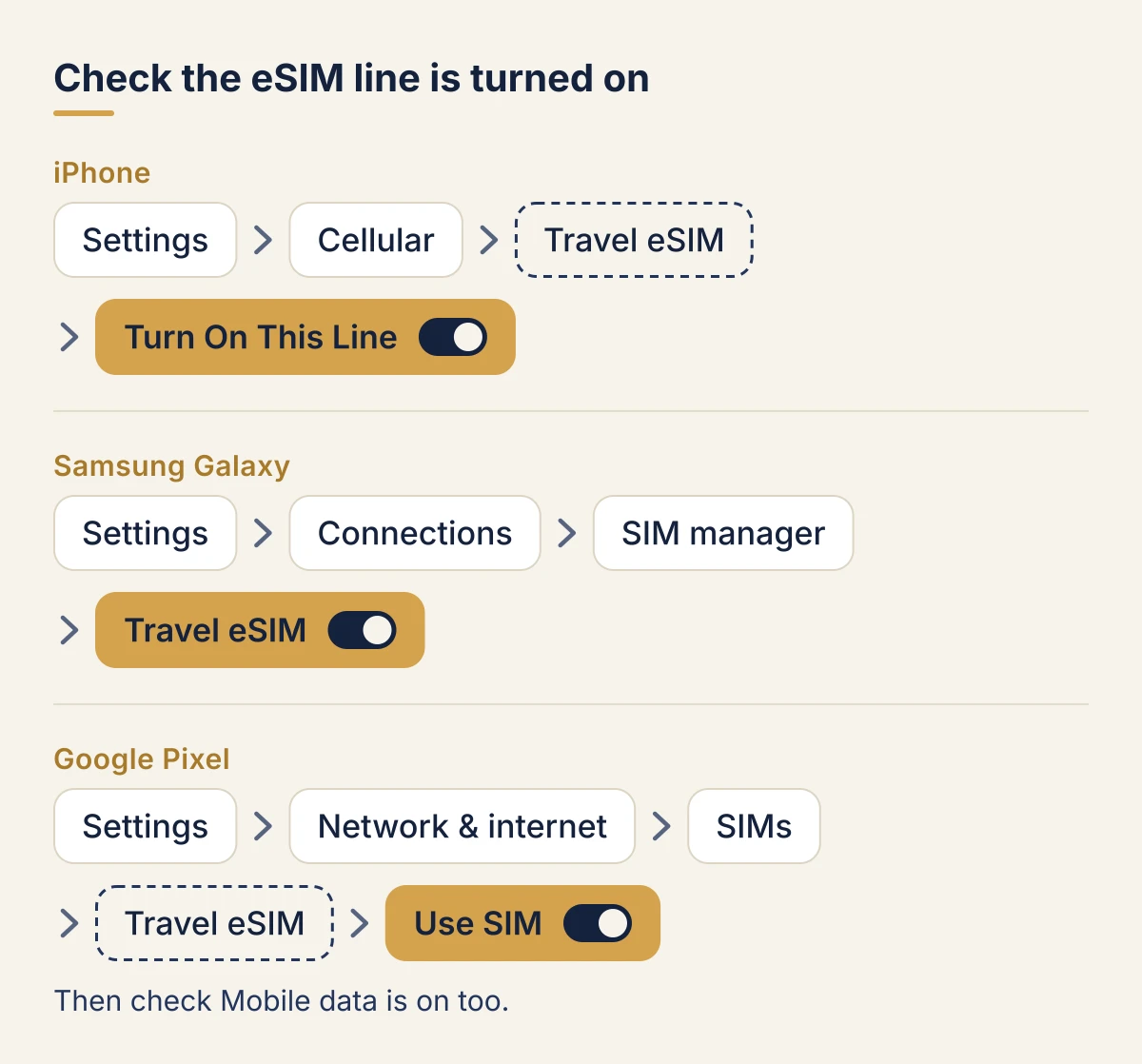
- iPhone: Settings > Cellular, tap the travel eSIM and check Turn On This Line is on.
- Samsung Galaxy: Settings > Connections > SIM manager, and check the switch next to the eSIM is on.
- Google Pixel: Settings > Network & internet > SIMs, tap the eSIM and check Use SIM is on. Then check Mobile data is on too.
4. You are outside the plan's coverage, or it has not started
A travel eSIM only connects in the countries its plan covers.
- Wrong country. A plan for Thailand will not connect in Malaysia. If your trip crosses borders, you need a plan for each country or a regional plan that lists every country you visit. Check the coverage list rather than assuming a neighbour is included.
- Region names are not guarantees. A "Europe" or "Asia" plan covers its own list of countries, and that list may skip some you expect. Read it before you go.
- The plan starts on first connection. On most plans the days start counting when the eSIM first connects in a covered country, so it shows "No Service" at home. That is normal. Some plans start on purchase or installation instead: check your plan's rule.
- The plan has expired. Count the days from first connection. A plan that started on a stopover counts from then.
5. The phone is stuck on one network
If you or a previous SIM set network selection to manual, the phone may keep trying a network your eSIM cannot use, and show no service while better networks are in range.
- Samsung Galaxy: Settings > Connections > Mobile networks > Network operators, and turn on Select automatically. Samsung's own advice is to keep it on.
- Google Pixel: Settings > Network & internet > SIMs, tap the travel eSIM, then Network. Let the phone choose automatically, or pick a network from the list.
- iPhone: look for Network Selection inside the travel eSIM's line settings under Settings > Cellular, and turn on Automatic. The exact place varies by iOS version and carrier.
If automatic does not connect, turn it off, wait for the list of networks, and pick one by hand. If your provider names a partner network for that country, choose that one. Turn automatic back on when you cross a border.
6. Airplane mode, then restart
It sounds too simple, but it fixes a lot. Phones often hold on to the last network they saw at home.
- Turn on Airplane Mode for at least 15 seconds (Apple's suggestion), then turn it off.
- If that does not work, restart the phone.
On iPhone, also check Settings > General > About while on Wi-Fi: if a carrier settings update is available, Apple says you will see an option to install it there.
7. The APN is missing or wrong
The APN (access point name) tells the phone how to reach the internet through the network. Most travel eSIMs set it on their own. When they do not, you get bars but no data, often with a "PDP authentication failure" message on Android (see step 11).
Your provider's installation email or page gives the APN if one is needed. Copy it exactly: it is usually one short word in lower case.
- Samsung Galaxy: Settings > Connections > Mobile networks > Access Point Names. Add a new access point with the APN your provider gives, save it, and select it. With two SIMs, make sure you are on the travel eSIM's list.
- Google Pixel: Settings > Network & internet > SIMs, tap the travel eSIM, then Access point names. Add a new one with the APN your provider gives, save, and select it.
- iPhone: Settings > Cellular > Cellular Data Network (or Mobile Data > Mobile Data Options > Mobile Data Network). Apple says you can only see this if your carrier allows it, and warns not to edit the APN unless your provider tells you to: a wrong value can cut your data. To undo a change, tap Reset Settings on the same screen.
8. Your data is used up or slowed
If the eSIM worked and then stopped, check how much you have left in your provider's app or order page.
- Fixed data plans stop when the data runs out.
- Daily plans have an allowance per day. Once it is used, data slows down or stops until the next day, depending on the plan.
- Unlimited plans usually keep a fair use limit: full speed up to a set amount each day, slower after that.
Very slow data that still works is usually this, not a fault. Our guide to fixed, daily and unlimited data explains how each plan type behaves. Ran out completely? See what to do when your eSIM runs out of data.
9. The phone is locked to your home carrier
A carrier-locked phone only works with that carrier's SIMs and eSIMs. A travel eSIM may install but never connect.
- iPhone: Settings > General > About, then look at Carrier Lock. Apple says No SIM restrictions means the phone is unlocked. Only your carrier can unlock it, not Apple.
- Android: there is no single menu for this. Phones bought on a payment plan from a carrier are the ones to check.
If it is locked, only your carrier can help, and unlocking can take days. Check before your next trip with our guide Does my phone support eSIM? or the compatible devices list.
10. "No Service" or "SOS only"
Apple explains these as follows: No Service or Searching means the phone is not connected to a cellular network. SOS or SOS only (shown in Australia, Canada and the United States) means it is not connected to your network but can still make emergency calls through other networks.
On a travel eSIM, this usually comes back to one of the steps above: the plan has not started or does not cover the country (step 4), the line is off (step 3), or the phone is stuck on one network (step 5). Go through those, then airplane mode and a restart (step 6). If you are in a remote area, check the coverage of the local networks there: a mountain or an island may simply have no signal.
11. "PDP authentication failure"
This Android message means the network refused to open a data session. Common causes:
- a missing or mistyped APN (step 7),
- no data left, or an expired plan (steps 4 and 8),
- the phone on a network the eSIM cannot use (step 5).
Fix those in that order. If it persists, contact your provider, since the problem can be on the network's side.
12. Reset network settings
If nothing above worked, a network settings reset clears saved Wi-Fi networks, APN changes and other network settings. It does not delete the eSIM, but turn data roaming back on afterwards: Apple notes that a reset may turn it off.
- iPhone: Settings > General > Transfer or Reset iPhone > Reset > Reset Network Settings. Do not choose Erase All Content and Settings.
- Google Pixel: Settings > System > Reset options, then reset mobile network settings.
- Samsung Galaxy: Settings > General management > Reset, then the network settings reset (named Reset network settings or Reset mobile network settings depending on your version).
Then repeat step 1 and step 2.
13. You deleted the eSIM
A deleted travel eSIM almost never installs again: the QR code is spent once installed. Do not try again from a screenshot. Contact your provider with your order number and ask whether they can issue a new one. Our guide on deleting an eSIM from an iPhone explains when to turn a line off instead.
If you have not installed your eSIM yet, follow our install guides for iPhone or Android before you fly.
When to contact support
Contact us if you have been through steps 1 to 7 and still have no data, if the eSIM never installed, or if you deleted it. Bought elsewhere? Your provider's support is the one to contact, since only the seller can check or reissue the eSIM.
For an eSIM Lounge order:
- Email support@esimlounge.com, or use the chat on our site.
- We answer every day from 07:00 to 23:00 Paris time and reply within 2 hours. Our support page has the details and our refund promise.
- Send your order reference (it starts with EL-), your phone model, the country you are in, and a screenshot of the travel eSIM's settings page. That saves a round of questions.
FAQ
Why is my eSIM not working abroad?
The most common reason is that data roaming is off on the eSIM line. A travel eSIM always connects through local partner networks, so it needs roaming on. The next most common is that your phone is still using your home line for data. Fix both in settings, then toggle airplane mode.
Why does my eSIM show bars but no internet?
Check that data roaming is on for the eSIM, that the eSIM is your mobile data line and that mobile data is on. If all three are set, check the APN your provider gives against the one on your phone, and check that you still have data left.
Why is my eSIM not working on my iPhone?
Go to Settings > Cellular, tap the travel eSIM and check that Turn On This Line is on, then turn on Data Roaming under Cellular Data Options. Under Cellular Data, choose the travel eSIM. Then turn airplane mode on for 15 seconds and off again.
My Airalo eSIM is not working. Do the same steps apply?
Yes. Every travel eSIM, Airalo's included, needs the same settings: data roaming on for that line, that line chosen for mobile data, and the right APN if the provider gives one. If those are right and it still does not connect, contact the seller's support, since only they can check the eSIM on their side.
Should I delete and reinstall my eSIM?
No. A travel eSIM usually installs only once, so a deleted one is often gone for good. Apple advises against erasing an eSIM to fix a problem unless your provider asks you to. Turn the line off and on again instead, and contact support if that does not help.
Does my eSIM work before I arrive?
Usually not. Most travel eSIMs only connect in the countries they cover, and many plans start counting days at first connection there. "No Service" at home is normal. It should connect within a few minutes of landing once data roaming is on. For the best moment to add it, see when to install an eSIM before travel.
Steps checked on 11 October 2026 against Apple, Google and Samsung support pages.