

Deleting an eSIM takes four taps, and on most eSIMs it cannot be undone: the code that installed it is spent, so the same eSIM will not install again. Check the next section before you tap Delete.
Delete it or turn it off?
Turn the line off when you may need it again: a travel eSIM with data or days left, a work line you use now and then. The eSIM stays on the phone, uses nothing and comes back with one switch.
Delete it when it is finished for good:
- a travel eSIM whose plan has expired,
- a line you have cancelled with the carrier,
- an eSIM you have moved to another phone (see how to transfer an eSIM to a new iPhone),
- an iPhone you are selling or giving away.
Deleting your home carrier's eSIM does not cancel the contract: you keep paying until you cancel it with the carrier.
How to turn a line off
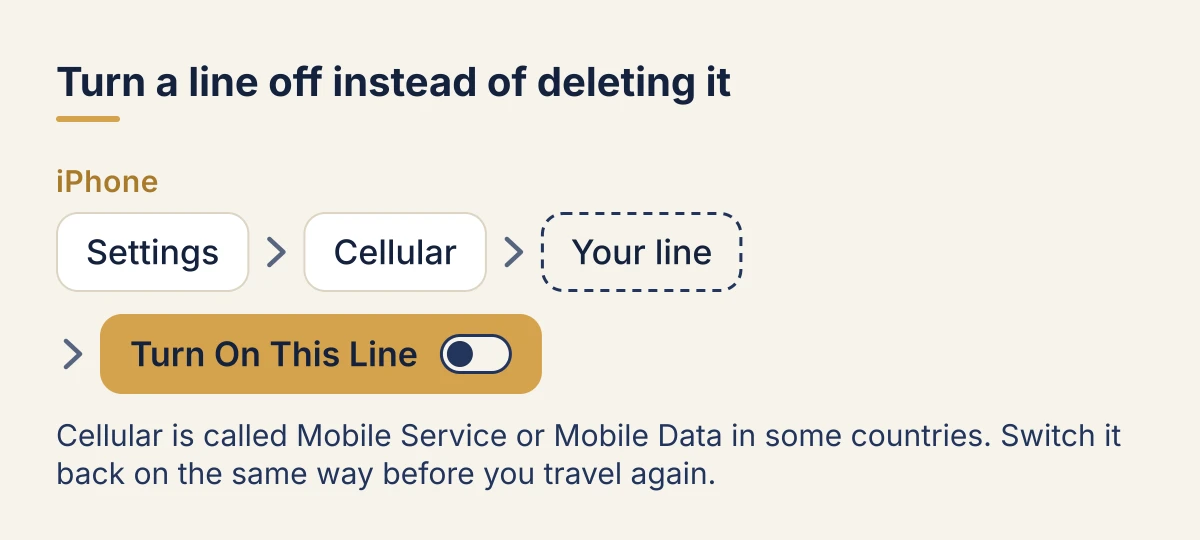
- Open Settings, then Cellular (Mobile Service or Mobile Data in some countries).
- Tap the line under SIMs.
- Switch Turn On This Line off.
Switch it back on the same way, before you travel again.
How to delete an eSIM
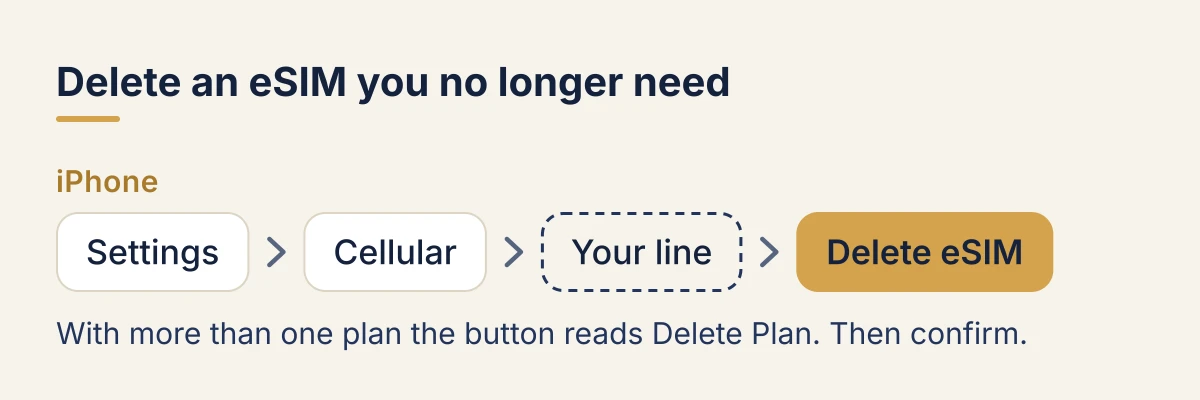
- Open Settings, then Cellular.
- Tap the line under SIMs.
- Scroll down and tap Delete eSIM (Delete Plan when you have more than one plan).
- Confirm.
The line disappears from the list. If it was your data line, choose another one under Cellular Data so the phone keeps a connection.
Resetting or selling the iPhone
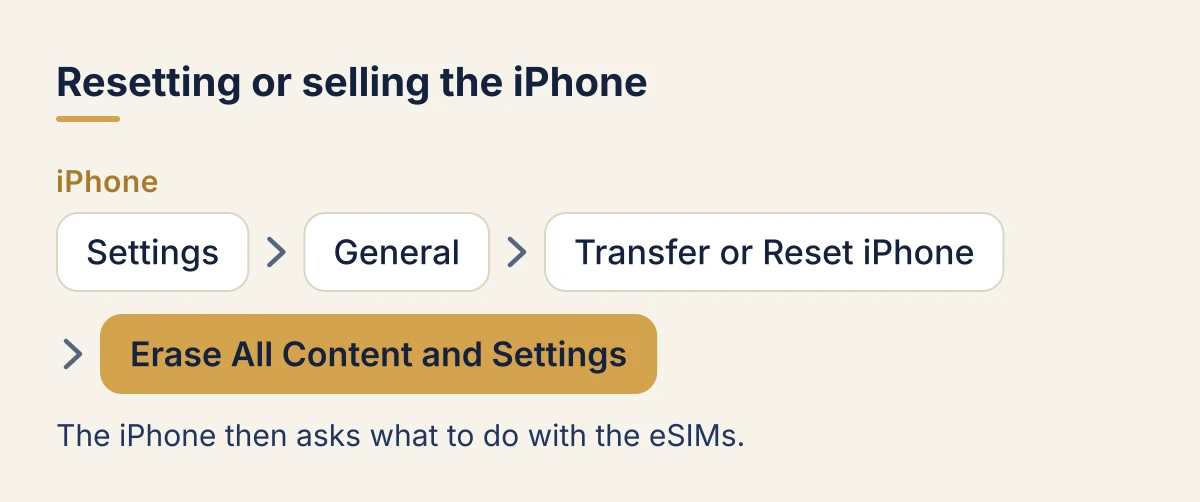
Settings > General > Transfer or Reset iPhone > Erase All Content and Settings asks what to do with the eSIMs:
- Erase eSIM before you sell, give away or trade in the phone, once your number is working on your new one.
- Keep eSIM when you are only resetting your own phone and will keep using it.
If you have just bought a new iPhone, move your number first with Quick Transfer, then erase the old one. If your phone was stolen, see what to do abroad before erasing it.
Travel eSIMs
- Keep it until the plan has expired. A deleted travel eSIM almost never installs again, even if data and days are left.
- Finished trips pile up. Once a plan has run out, delete it: it will never connect again, and a long list of dead lines makes it easy to pick the wrong one for data.
- Going back to the same country? Buy a new plan. Install it before you fly with our guide to adding and activating an eSIM on iPhone.
Common questions
Can I reinstall an eSIM I deleted? Usually not with the same QR code. For your home line, ask your carrier for a new eSIM; for a travel eSIM, contact the seller's support with your order number.
How many eSIMs can an iPhone hold? Eight or more, two active at a time, so there is rarely a need to delete one to make room.
Will deleting the eSIM delete my contacts or messages? No. Contacts, photos and messages stay on the phone and in iCloud. Only the line goes.
Not sure which iPhone you have, or whether it takes an eSIM? The Apple model list has every model.
Checked against Apple's support pages on 11 October 2026. Menu names vary slightly by iOS version and country.