

Changing iPhones no longer means a trip to the carrier's shop. On iOS 18.4 and later most carriers let you move your eSIM straight from the old iPhone to the new one, in a few minutes. A travel eSIM is the exception: read the last part before you erase your old phone.
Before you start
- Keep the old iPhone. Do not erase or trade it in until the new one has a working line. The transfer reads the eSIM from it.
- Update both iPhones to the latest iOS. Quick Transfer needs iOS 18.4 or later on both.
- Check the new iPhone takes your carrier's eSIM. Every iPhone from the XS and XR onwards takes an eSIM; the Apple model list has each one. A new iPhone locked to another carrier will refuse yours.
- Have Wi-Fi and Bluetooth on, both phones charged and next to each other.
Transfer it while setting up the new iPhone
- Turn the new iPhone on and follow the setup screens.
- When you reach Set Up Cellular (or Transfer Your SIM), choose your number from the list.
- On the old iPhone, confirm the transfer when asked. Some carriers send a code to the old iPhone: type it on the new one.
- Wait for the line to activate on the new iPhone. It can take a few minutes, and the old iPhone's line stops working once it does.
Transfer it after setup
If you skipped that step:
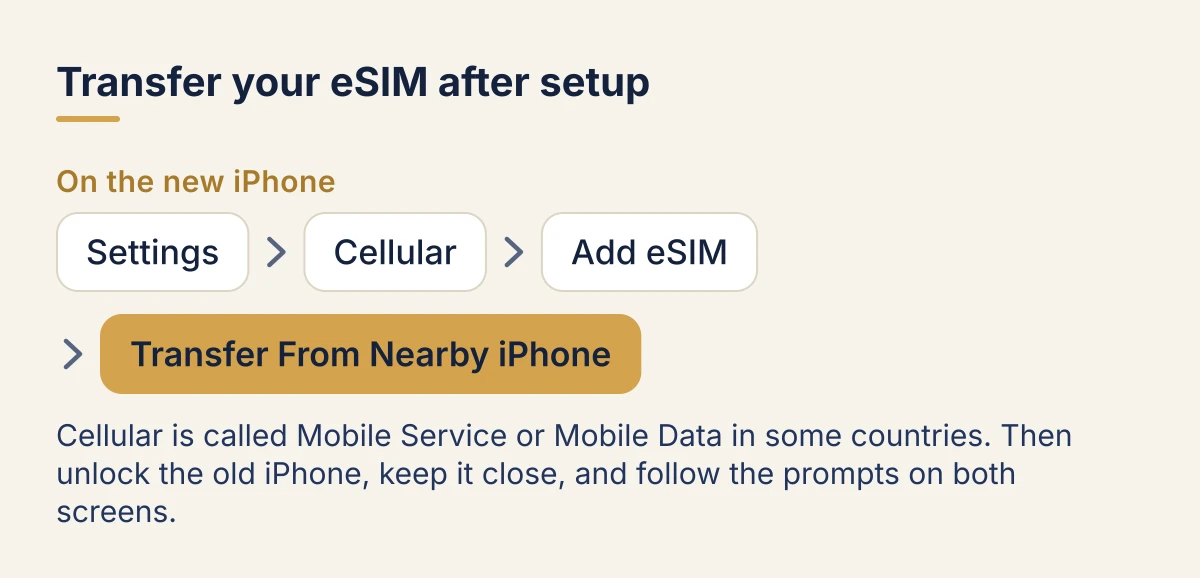
- On the new iPhone, open Settings, then Cellular (Mobile Service or Mobile Data in some countries).
- Tap Add eSIM, then Transfer From Nearby iPhone.
- Unlock the old iPhone, keep it close, and follow the prompts on both screens.
When Quick Transfer is not offered
Your carrier decides whether Quick Transfer works. If your number is not in the list, or the transfer fails:
- Look in your carrier's app. Many let you move or reissue an eSIM there.
- Ask your carrier for a new eSIM QR code, then add it with Settings > Cellular > Add eSIM > Use QR Code.
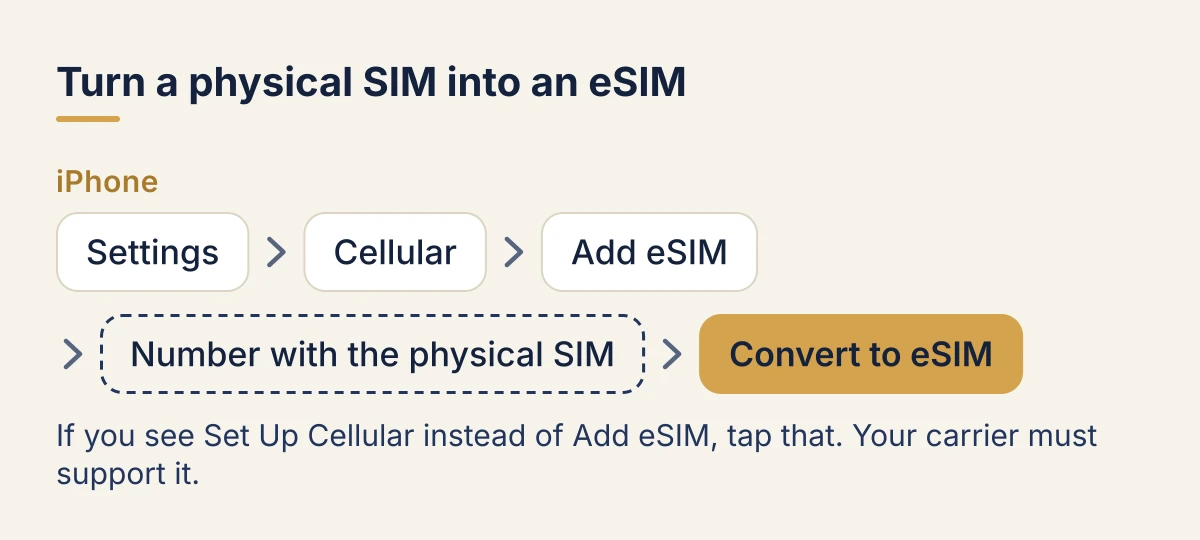
- A physical SIM? On a supported carrier, go to Settings > Cellular, tap Set Up Cellular or Add eSIM, choose the number with the physical SIM, then tap Convert to eSIM to turn it into an eSIM on the same iPhone.
What happens to a travel eSIM
A travel eSIM is not tied to your number, and most of them install once: the code is spent the first time it is used. Quick Transfer usually does not move them, and deleting one from the old iPhone does not give you a fresh code.
So, before you change phones:
- Finish the trip on the old iPhone if you can, or let the plan run out first.
- Changing phones mid-trip? Contact the seller's support with your order number before you erase the old iPhone, and ask whether the eSIM can be reissued for the new one.
- Buying a plan for your next trip? Install it on the new iPhone directly. Our guide to adding and activating an eSIM on iPhone has the steps.
Phone lost or stolen on a trip? Follow these steps, in order.
Afterwards: clear the old iPhone
Once the new iPhone has a working line, the eSIM on the old one is dead weight. Remove it, then erase the phone: see how to delete an eSIM from an iPhone for when to choose Erase eSIM and when to keep it.
Common questions
Do I keep my number? Yes. A transfer moves your existing line, with its number and plan.
Can I transfer an eSIM from an iPhone to an Android phone? Some carriers support it on recent phones, many do not. If yours does not, ask them for a new eSIM for the Android phone.
The transfer says my carrier does not support it. Use your carrier's app or ask them for a new QR code, as above. The old line keeps working until the new one is active.
Checked against Apple's support pages on 11 October 2026. Menu names vary slightly by iOS version and country.