
A travel eSIM is a data plan you add to your phone as a second line. Your usual SIM stays in place for calls and texts, and the eSIM carries your mobile data abroad.
Android menus differ by brand and version. The steps below are for Samsung Galaxy (One UI) and Google Pixel, which cover most Android eSIM phones. Other brands use similar names.
Before you start
- Check your phone takes an eSIM. Most Galaxy S, Z Flip and Z Fold models from 2020 onwards do, some Galaxy A models such as the Galaxy A54 too, and Pixel phones from the Pixel 3 onwards, with exceptions by country and carrier. The quickest check is in our guide Does my phone support eSIM?.
- Check it is unlocked. A phone locked to your home carrier refuses another carrier's eSIM.
- Be on Wi-Fi. The eSIM downloads over the internet.
- Install it on the day you leave, before you go to the airport. On most plans the clock starts the first time the eSIM connects to a network in the country it covers, not when you install it. Each plan says which rule it follows, so check yours.
Not sure when to install? See when to install an eSIM before travel. Wondering what happens in flight? Does an eSIM work on a plane?
Install it on a Samsung Galaxy
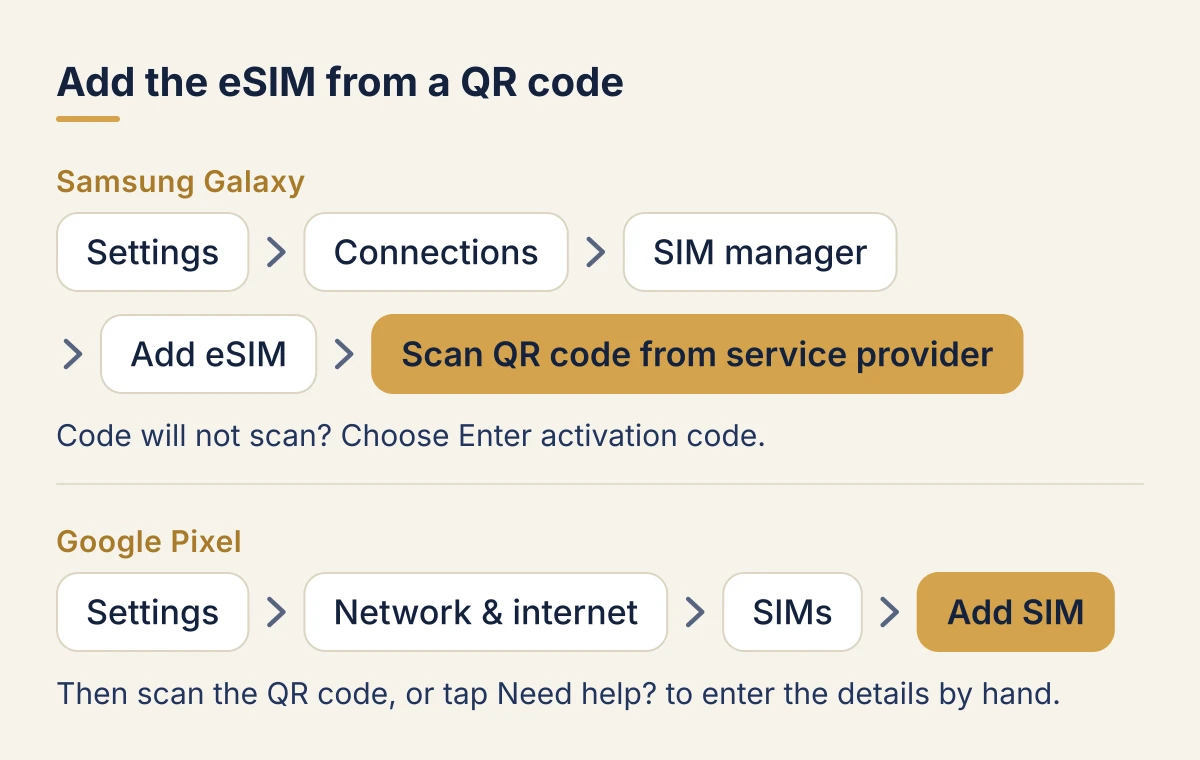
- Open Settings > Connections > SIM manager.
- Tap Add eSIM.
- Tap Scan QR code from service provider and point the camera at the code. If you have the code as a picture on the same phone, some versions let you pick it from the gallery.
- Confirm, and wait for the eSIM to show up under eSIMs.
No camera option, or the code will not scan? Choose Enter activation code and type the activation code from your email. Some versions ask for the SM-DP+ address and the code separately: copy both exactly.
Install it on a Google Pixel
- Open Settings > Network & internet > SIMs.
- Tap Add SIM (on some versions, Download a SIM instead? first).
- Scan the QR code, or tap Need help? to enter the details by hand.
- When asked, choose to use the new line for mobile data.
Set the lines
In SIM manager (Samsung) or SIMs (Pixel):
- Calls and messages: your usual SIM.
- Mobile data: the travel eSIM.
Turn off any option that switches data back to your usual SIM automatically (Samsung calls it Mobile data switching or Auto data switching). Otherwise a weak signal can push data onto your home SIM, and your home carrier bills roaming.
When you land
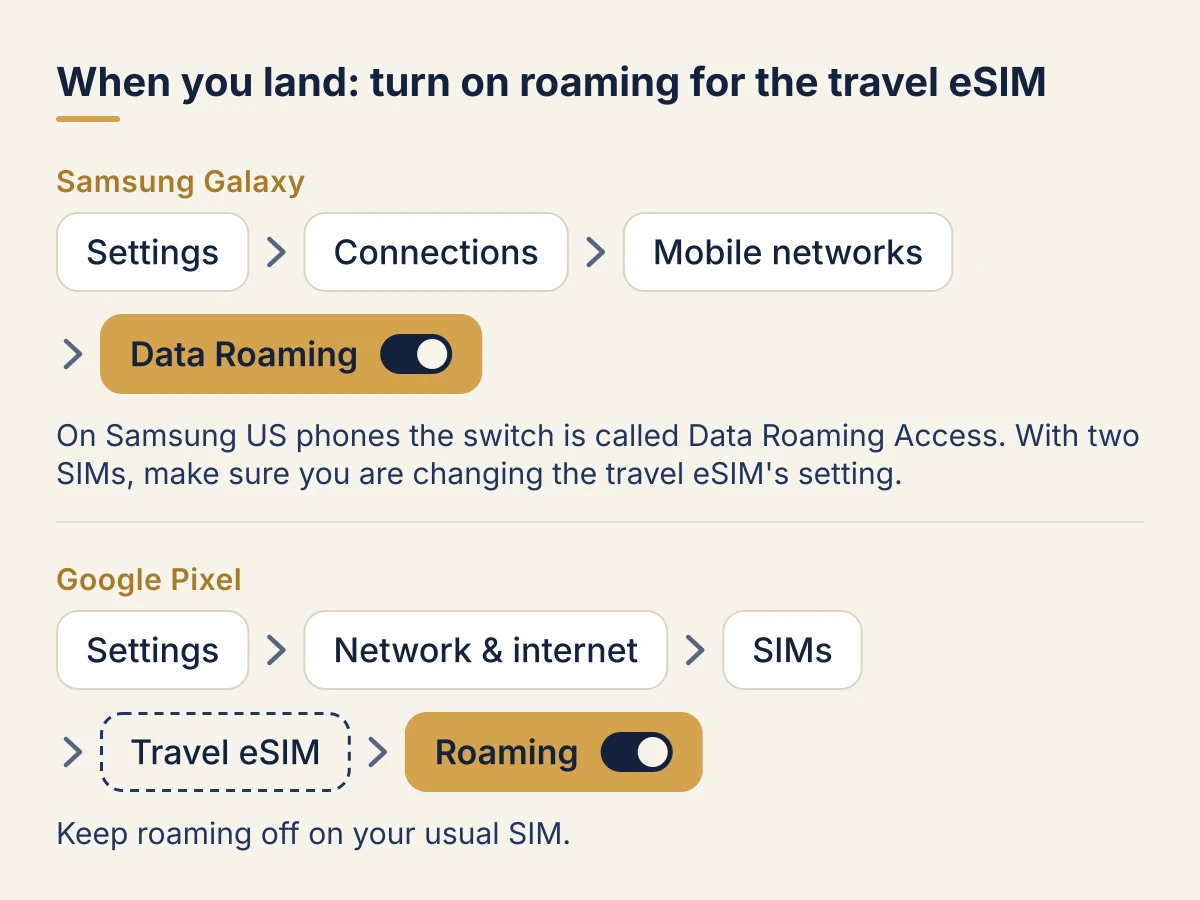
- Open the travel eSIM's settings. On a Pixel, tap its name in SIMs. On a Samsung Galaxy, go to Settings > Connections > Mobile networks, and make sure you are changing the travel eSIM's setting.
- Turn Roaming on for that line only (on Samsung, the Data Roaming switch, called Data Roaming Access on Samsung US phones). A travel eSIM always roams on a local partner network, so data stays off without it.
- Keep roaming off on your usual SIM if you want to avoid roaming charges from home.
Give it a minute or two. If nothing connects, restart the phone, then try picking a network by hand under Network operators or Mobile networks > Network operators. If it still shows No Service, or bars but no internet, our guide to fixing an eSIM that is not working abroad goes through every cause in order.
Common questions
Can I keep WhatsApp on my usual number? Yes. WhatsApp stays on the number you registered, whichever line carries the data.
Can I delete the eSIM after the trip? Keep it until the plan has expired. Most eSIMs cannot be installed again once deleted.
The install says the code is invalid or already used. An eSIM installs once. Do not try again from a screenshot. Contact the seller's support with your order number.
On an iPhone instead? See How to install a travel eSIM on iPhone.