

Moving your phone number from an iPhone to an Android phone used to mean calling your carrier. Since iOS 26, Apple, Google and Samsung have built a direct transfer between the two platforms, but only some carriers support it, and none of it applies to a travel eSIM. This guide covers both directions, Android to Android, and what to do when your carrier is not on the list.
Moving from one iPhone to another? See how to transfer an eSIM to a new iPhone instead.
Two kinds of eSIM, two different answers
Before you touch anything, work out which eSIM you are moving.
- Your home carrier's eSIM (your everyday number with AT&T, Verizon, T-Mobile, EE and so on). This is the one the built-in transfer tools move. If your carrier does not support them, it can still put your number on the new phone through its app, a new QR code or a store visit.
- A travel eSIM (a data plan you bought for a trip). It is not tied to a phone number, and most install once: the QR code is spent the first time it is used. None of the transfer tools below lists a travel eSIM provider, so do not expect one to move with your number.
Before you start
- Do not delete the eSIM from the old phone. Deleting it does not move it, and for a travel eSIM it usually cannot be undone. Keep the old phone working until the new one has a line.
- Check the new phone takes an eSIM. Our 30-second check shows how, and the compatible devices list has every model.
- Check the new phone is unlocked, or locked to the same carrier. A phone locked to another carrier will refuse your eSIM.
- Update both phones to the latest software. The cross-platform transfer needs iOS 26 or later on the iPhone and a recent Android version (details below).
- Turn on Wi-Fi and Bluetooth on both phones, charge them and keep them side by side.
- Look up your carrier in the lists below. If it is not there, the section on carriers that do not support transfer, further down, has the other routes.
iPhone to Android
There are three routes, depending on the Android phone. All of them work only with a supported carrier, and once the transfer is done your number stops working on the iPhone.
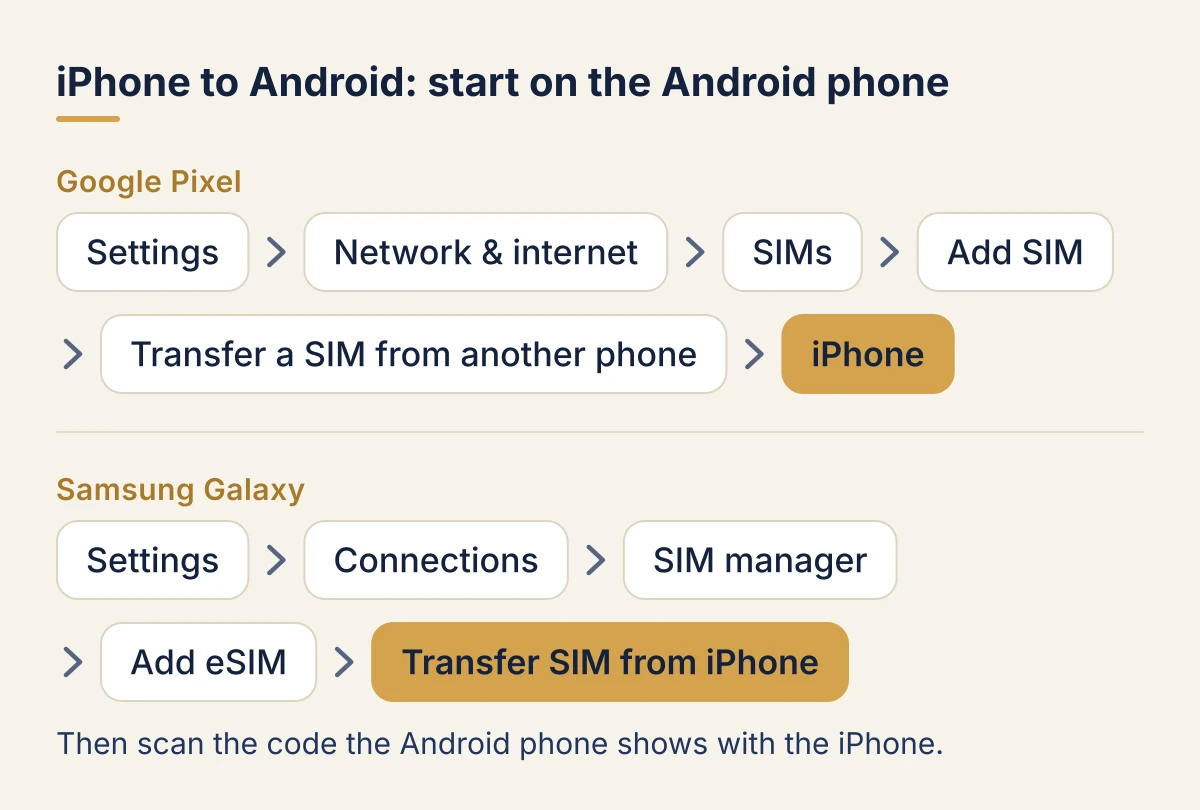
iPhone to Google Pixel
On the Pixel:
- Open Settings.
- Tap Network & internet, then SIMs, then Add SIM.
- Tap Transfer a SIM from another phone, then iPhone.
- Follow the instructions on screen, then pair the Pixel with the iPhone by scanning the QR code.
Google says the iPhone must run iOS 26 or later and tells you to ask your carrier about supported models and minimum software versions. The carriers it names for iPhone to Pixel include AT&T, Verizon, T-Mobile, Cricket, FirstNet, Xfinity Mobile and Google Fi in the US, and EE in the UK.
If you bought the Pixel from Verizon or AT&T, the carrier may already have assigned an eSIM to it, which the Pixel finds during setup. Verizon customers can also move the line in the My Verizon app.
iPhone to Samsung Galaxy
On the Galaxy:
- Open Settings, then Connections, then SIM manager.
- Tap Add eSIM, then Transfer SIM from iPhone, then Next. The Galaxy shows a QR code.
- Scan the code with the iPhone. If it will not scan, tap Enter a passcode on the Galaxy and follow the steps.
- On the iPhone, pick the number to move and tap Continue, then Continue again to confirm.
Samsung lists AT&T, FirstNet, T-Mobile and Verizon in the US and EE in the UK for transfer from an iPhone. Both phones need the latest software, Wi-Fi and Bluetooth.
Starting from the iPhone (iOS 26.3 and later)
Apple also has a Transfer to Android feature that moves your data and your eSIM in one go while you set up the new Android phone. It needs iOS 26.3 on the iPhone and a compatible version of Android 17 on the new phone.
- Data and eSIM: start setting up the Android phone, scan its QR code with the iPhone's Camera, choose what to copy, tap Continue to move the eSIM, then double-click the side button to confirm. You can also start it from Settings > General > Transfer or Reset iPhone > Transfer to Android.
- eSIM only: begin adding an eSIM on the Android phone, then on the iPhone go to Settings > Cellular, and under Transfer to Android tap Transfer eSIM. Scan the Android phone's code, choose the number and confirm with the side button.
Apple's list for this route is shorter: AT&T, FirstNet, T-Mobile and Verizon in the US, EE in the UK, plus KDDI in Japan, Deutsche Telekom in Germany and SFR in France.
Android to iPhone
With iOS 26 or later, an iPhone 11 or newer can take an eSIM straight from an Android phone running Android 16 or later. Apple tells you to check with your phone's maker that the Android phone is compatible.
You can do it while setting up the new iPhone, or afterwards:
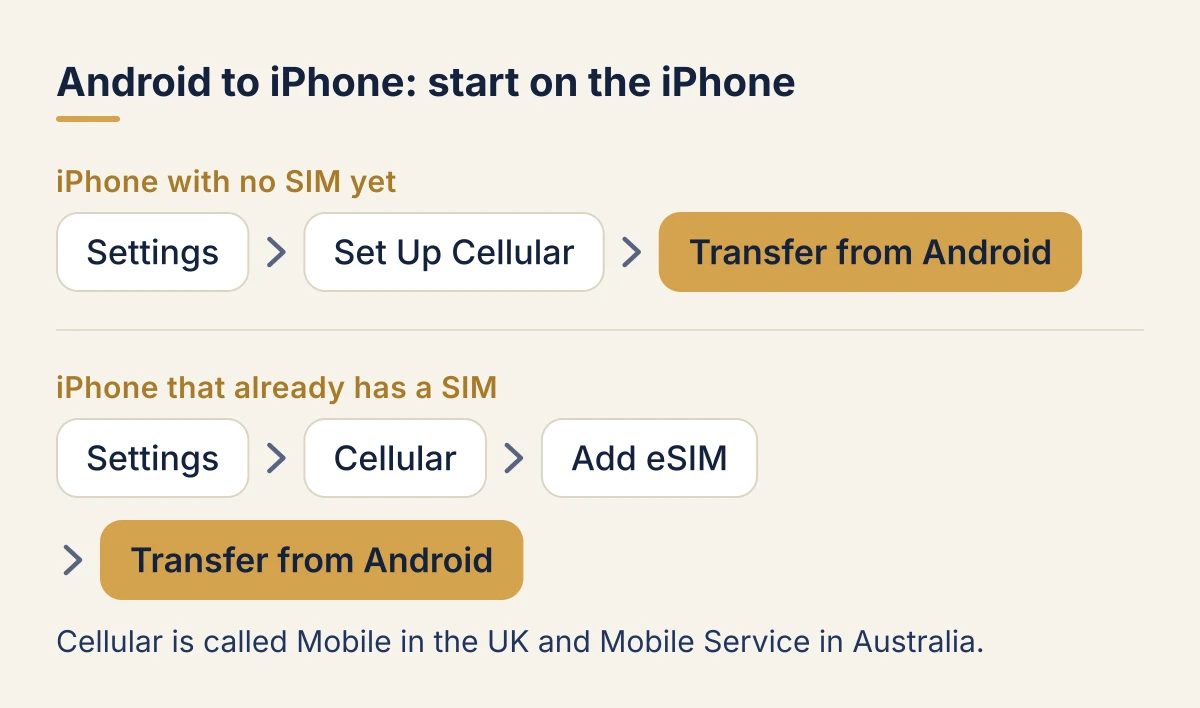
- On the iPhone, open Settings and tap Set Up Cellular, then Transfer from Android. If the iPhone already has a SIM, go to Cellular (Mobile in the UK, Mobile Service in Australia), tap Add eSIM, then Transfer from Android.
- Tap Transfer From Android. The iPhone shows a QR code.
- Scan it with the Android phone's camera.
- On the Android phone, pick the number and tap Transfer.
- On the iPhone, tap Done, then OK, and make a call to check the line works.
If the code will not scan, tap Other Options on the iPhone. On the Android phone, go to Settings > Google services > All services > Pair with iPhone or iPad > Transfer eSIM and enter the session ID and pairing code the iPhone shows.
Apple's supported carriers for Android to iPhone, as of October 2026:
- US: AT&T, Cricket, FirstNet, T-Mobile, Verizon, Xfinity Mobile
- UK: EE
- Canada: Bell, Koodo, Lucky Mobile, Telus, Virgin Mobile
- Also: Austria, Brazil, Czechia, France, Germany, Japan, Mexico, the Netherlands, Slovakia and Switzerland, on named carriers
No Australian carrier is on Apple's list. Once the transfer finishes, the SIM on the Android phone stops working.
Android to Android
To a Google Pixel
Both phones need Android 12 or later, the current version of Google Play services and a screen lock.
- During setup: keep the old phone nearby, choose the SIM to move, tap Transfer, then Activate, and wait for it to finish.
- After setup: on the Pixel, go to Settings > Network & internet > SIMs > Add SIM > Transfer SIM from another device.
Google says the steps vary slightly by carrier, and that your old phone and eSIM keep working if the transfer fails.
Samsung to Samsung (and other Android phones to a Galaxy)
- On the new Galaxy, go to Settings > Connections > SIM manager > Add eSIM > Transfer SIM from another phone.
- On the old phone, tap Transfer and enter the code the new phone shows.
- On the new phone, pick the SIM and tap Transfer, then tap Transfer on the old phone.
- Tap Done on the old phone. The line activates on the new one.
Samsung's US list for this transfer includes AT&T, Boost Mobile, Cricket, FirstNet, Mint Mobile, Spectrum Mobile, T-Mobile, U.S. Cellular, Verizon and Xfinity Mobile. In the UK it names O2, Spusu and EE. It names no Australian carrier.
When your carrier does not support transfer
If your carrier is not on these lists, or the transfer fails, your number can still move. Ask the carrier for one of these:
- The carrier's app. Many carriers let you move or reissue an eSIM for a new phone in their app.
- A new eSIM QR code. On Android, scan it under Add eSIM (Samsung) or Add SIM (Pixel). On iPhone, use Settings > Cellular > Add eSIM > Use QR Code.
- Carrier activation. Some carriers push the eSIM to the new phone once you give them its details, and the phone offers to install it during setup.
- A store visit. Most carrier stores can issue a new eSIM or a physical SIM for the new phone.
Australians in particular should go this way: Apple, Google and Samsung name no Australian carrier for direct transfer, so check with your carrier.
Moving a travel eSIM to a new phone
A travel eSIM rarely moves. Most providers issue a single-use code, the platform transfer tools are built for carriers' phone numbers, and deleting the eSIM does not give the code back. So:
- Finish the trip on the old phone if you can, or let the plan run out first.
- Changing phones mid-trip? Ask the provider's support whether it can reissue the eSIM for the new phone, before you delete anything or reset the old phone.
- Bought from eSIM Lounge? Your travel eSIM is tied to the phone it was installed on. Email support@esimlounge.com with your order number before you switch phones, and we will tell you what can be done for your plan.
- Next trip? Install the new plan on the new phone directly: see our guides for iPhone and Android.
When the new phone works and the trip is over, you can clear the old eSIM. Our guide to deleting an eSIM from an iPhone explains when to remove it and when to keep it.
FAQ
Can I transfer an eSIM from iPhone to Android?
Yes, with iOS 26 or later and a supported carrier. On a Pixel use Settings > Network & internet > SIMs > Add SIM > Transfer a SIM from another phone > iPhone. On a Galaxy use SIM manager > Add eSIM > Transfer SIM from iPhone. If your carrier is not supported, ask it for a new eSIM for the Android phone.
Can I transfer an eSIM from Android to iPhone?
Yes, on an iPhone 11 or later with iOS 26, from an Android phone running Android 16 or later, with a supported carrier such as AT&T, T-Mobile, Verizon or EE. Start from Settings > Cellular > Add eSIM > Transfer from Android on the iPhone.
Does my number stop working on the old phone?
Yes. Once the transfer completes, the line moves and the old phone loses it. That is why you should keep the old phone untouched until the new one makes calls.
Can I move a travel eSIM to a new phone?
Usually not by yourself. Most travel eSIM codes work once, and the transfer tools only move carrier lines. Contact the provider before you delete it or reset the phone.
Should I delete the eSIM before transferring?
No. The transfer reads the eSIM from the old phone. Delete it only after the new phone has a working line, or never if it is a travel eSIM you may still need.
My carrier is not on any list. What now?
Use your carrier's app, ask for a new eSIM QR code, or visit a store. Your carrier can usually move your number to a new phone, even when the phone cannot transfer it by itself.
Steps checked on 11 October 2026 against Apple, Google and Samsung support pages.